
This page is NOT INDEXED so if you duplicate or override this page, Google WILL NOT see it.
Full instructions on adding a post are written below...
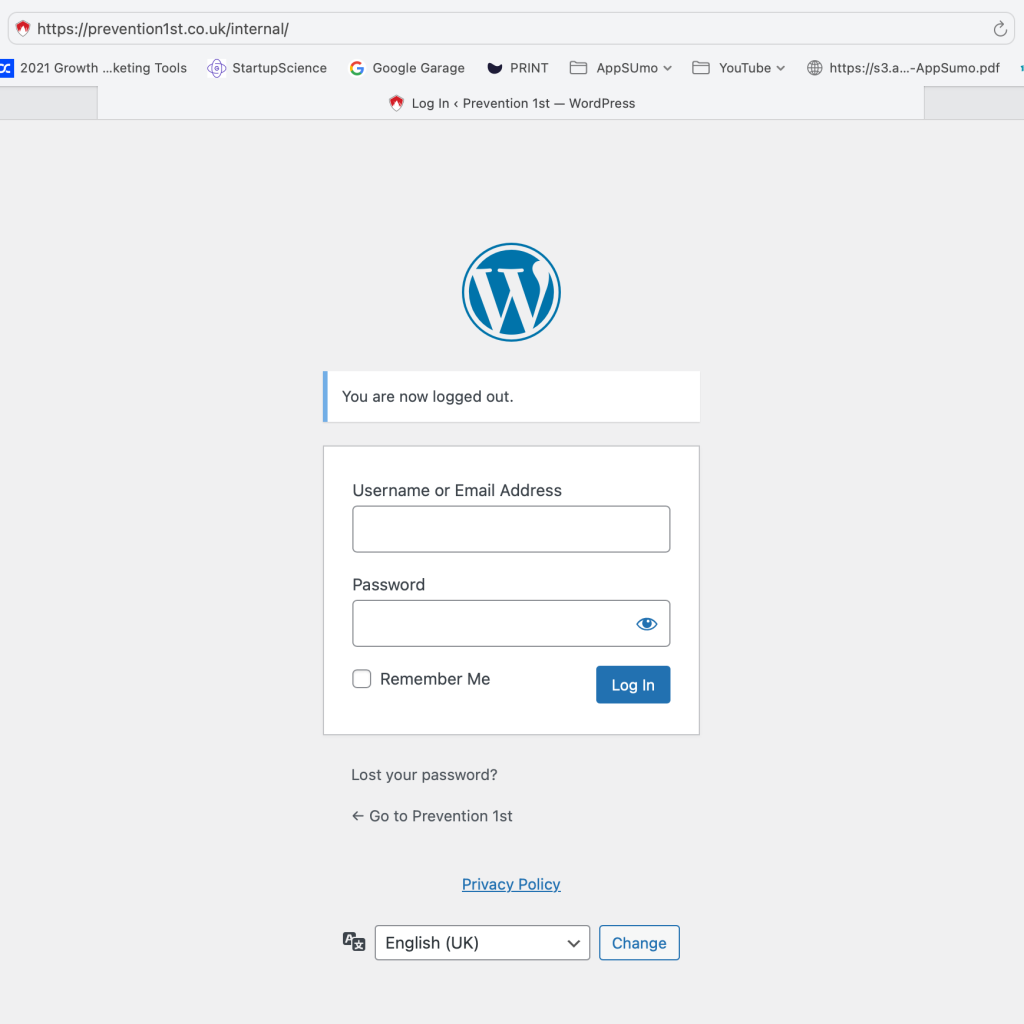
Logging in to WordPress
Visit the URL https://prevention1st.co.uk/internal
Enter your credentials in the box provided and click 'remember me'
Then click on 'Posts' in the left side bar
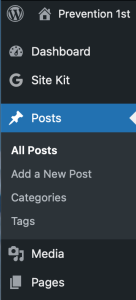
Finally at the top click on 'Add a New Post'

Writing the article
This is styled as Heading Two - This should be at the top of your article and be your Main Title (Found in dropdown above)
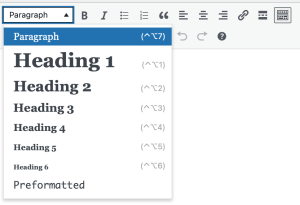
Do not use Heading 1 as this is dynamically set in the template from the Article Title. You should only ever have one H1 on a page. H2's and H3's are fine to use throughout.
Write some Introduction text formatted as 'paragraph' as well as the rest of the body text. You can bold the introduction as well as key words you want to emphasise with the 'B' (Bold) function above next to the text formatting dropdown.
Selecting the Appropriate Template for the Article
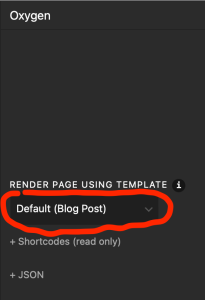
At the bottom of this page you will see a black 'Oxygen' box which is the theme built for this website. There are several 'templates' created to make it easier for you to publish articles with minimum effort. Please ensure the template used is 'Blog Post' but this should be default.
Article Text Hierarchy (This uses H2)
Main points for this section, an overview about the points you are going to cover
Heading Three - Related and within the section of Heading 2
Information about this point
Heading Three - Related and within the section of Heading 2
Information about this point
Adding an Image to the Article
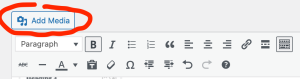
Click on the 'Add Media' button above.
Either select an existing image from your library BUT THIS CAN EFFECT SEO. It is always better to upload a new photo if possible
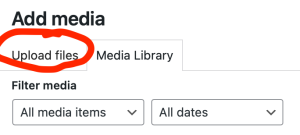
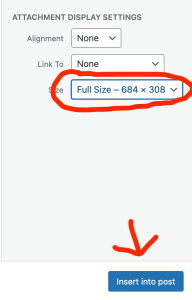
You can drag and drop any image to this section or use the uploader function. Please ensure the image is no larger than about 1000 pixels across, ideally less. Also check the display size of the image before you 'add to Post'. Selecting full size will make the image as big as the page width I have set whether that be on a desktop or on a mobile phone.
Adding a Featured Image
The featured image will display in the background, faded, at the top of the article, as well as display in a small box for the article on the main 'All Articles' page. Add a Featured Image using the box bottom right
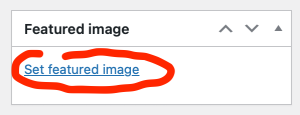
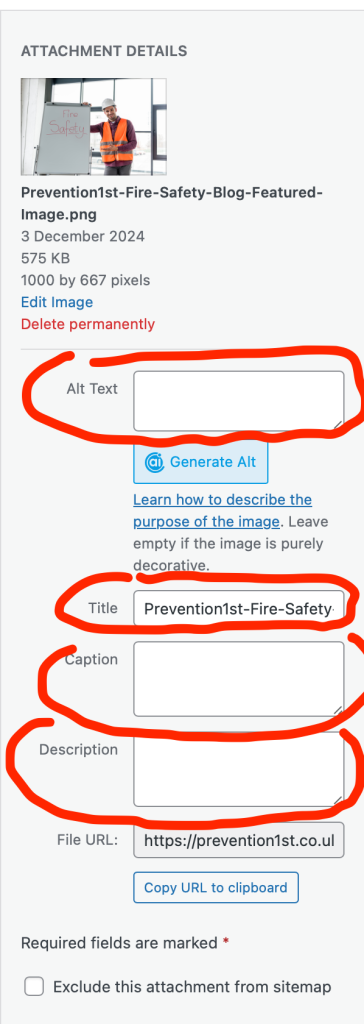
Upload an image in the same way and be sure to add your page title to all of the meta-description boxes on the right hand side. It is a good idea to use a full title as well as a standard pre-title such as the following:
"Prevention 1st Fires Safety and Compliance - ARTICLE TITLE HERE" Add this to all 4 boxes shown below.
Choosing the Category so the Article Will Display
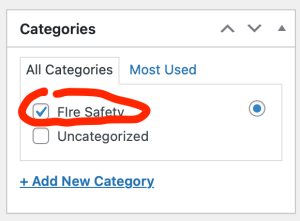
When your article is complete and you click 'Publish' the article will be live and also dynamically be placed within the 'All Blogs' section of the website AS LONG as you select the appropriate Category. Please ensure you check the 'Fire Safety' category otherwise it will remain hidden.
H2 - Key Take Away & Call To Action (CTA)
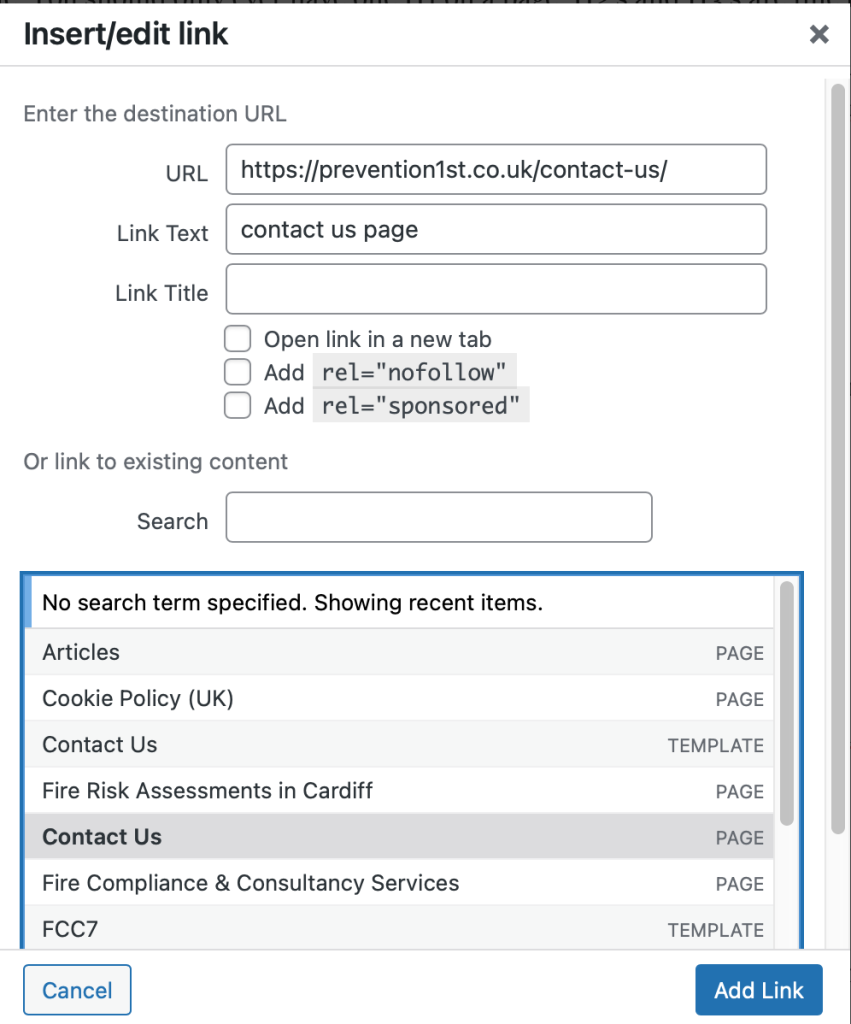
Call to Action here with a link to the contact us page created by selecting the text and then clicking the 'link' button

Then click the 'cog'

Finally select the contact page from the list. DO NOT SELECT A TEMPLATE, PLEASE ENSURE IT IS A PAGE OTHERWISE THE LINK WILL NOT WORK
SEO Considerations
Below the black Oxygen box, you will see a section called 'RankMath' which is to help you with SEO for the page. This is not essential but benefits your article creation to optimise it for search queries and is a guide only.
Add your UNIQUE focus keyphrase, something you haven't used anywhere before, into the box.
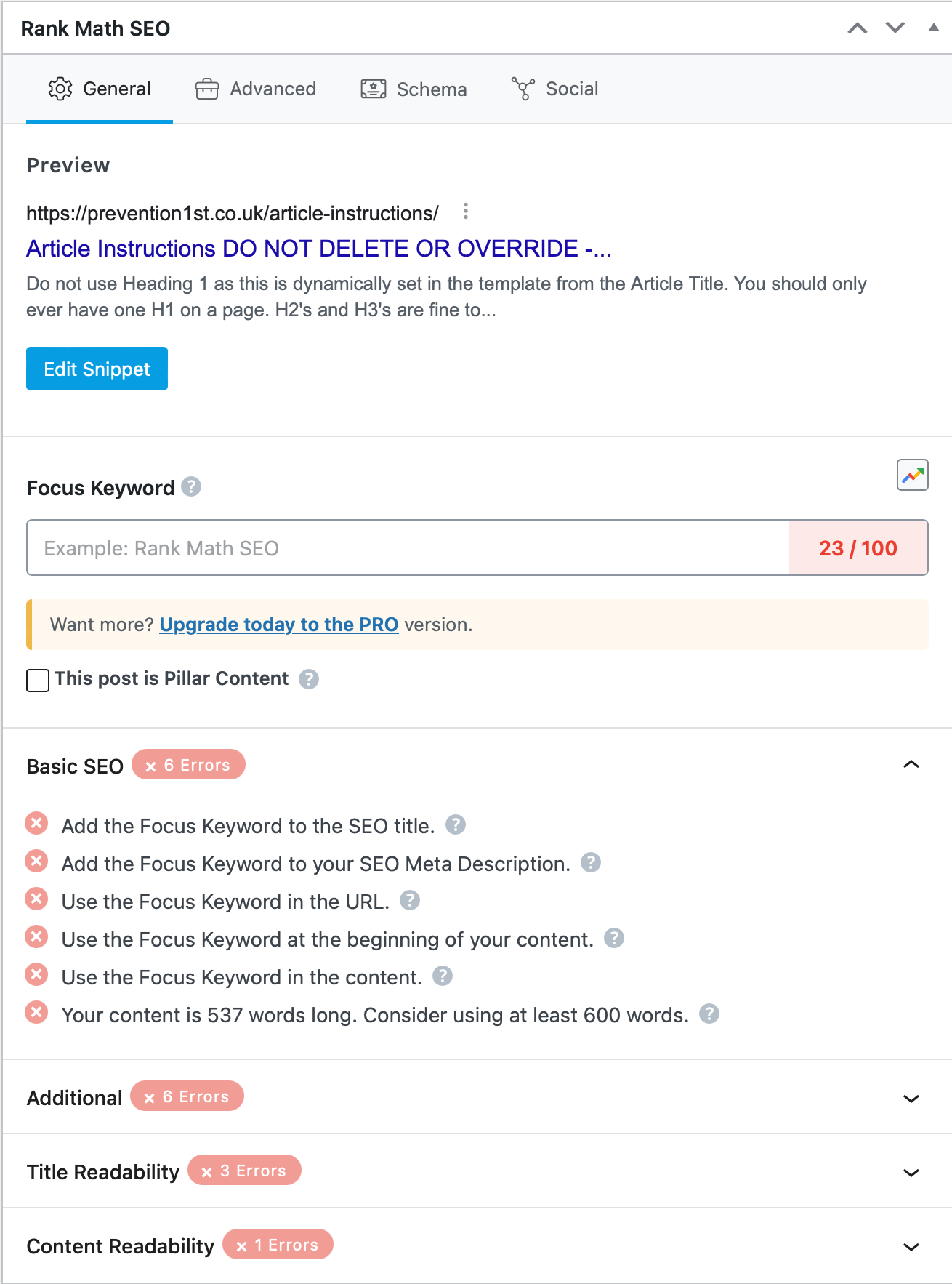
If you also click on the 'Edit Snippet' box, you will be able to edit the description. The heading and permalink, do not worry too much about. The description is IMPORTANT. This is shown on the 'All Blogs' page underneath the Featured Image as well as any Google search results and is an overview for the blog that MUST contain your focus keyphrase and be no longer than 160 characters. The red colour will show you when you are too long. You will never get to 100% so dont worry, just ensure your focus keyphrase is written in the Page Title, Main Heading, a H2 and/or H3, towards the start of your introduction paragraph, and also in the description within the snippet.
Publishing the Article
You will see a Blue Button that either says 'Update' or 'Publish'.
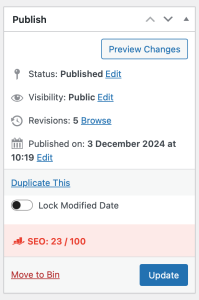
When you click this, your page will be live.